조금 매운맛 27 채팅 메세지 보내기
조금 매운맛 28 chat(메세지) 버블 만들고 메시지 배치하기
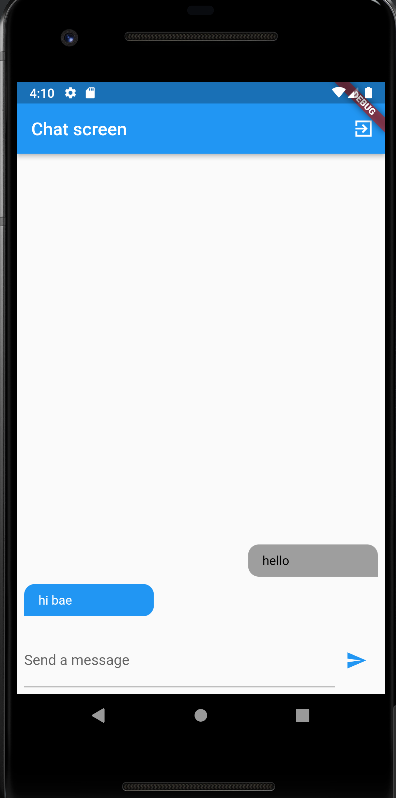

//message.dart
import 'package:flutter/material.dart';
import 'package:cloud_firestore/cloud_firestore.dart';
import 'package:yami_chat/chatting/chat/chat_bubble.dart';
import 'package:firebase_auth/firebase_auth.dart';

class Messages extends StatelessWidget {
  const Messages({Key? key}) : super(key: key);

  @override
  Widget build(BuildContext context) {
    final user = FirebaseAuth.instance.currentUser;
    return StreamBuilder(
        stream: FirebaseFirestore.instance
            .collection('chat')
            .orderBy('time', descending: true)
            .snapshots(),
    builder: (context,AsyncSnapshot<QuerySnapshot<Map<String, dynamic>>> snapshot){
          if(snapshot.connectionState == ConnectionState.waiting){
            return Center(
              child: CircularProgressIndicator(),
            );
          }
          final chatDocs = snapshot.data!.docs;

          return ListView.builder(
            reverse: true, //보낸 메세지가 하단부터 쌓이도록
              itemCount: chatDocs.length,
              itemBuilder: (context, index){
                return Chatbubble(
                    chatDocs[index]['text'],
                    chatDocs[index]['userID'].toString() == user!.uid,
                );
            },
          );
          },
    );
  }
}
// new_message.dart
import 'package:flutter/material.dart';
import 'package:cloud_firestore/cloud_firestore.dart';
import 'package:firebase_auth/firebase_auth.dart';

class NewMessage extends StatefulWidget {
  const NewMessage({Key? key}) : super(key: key);

  @override
  _NewMessageState createState() => _NewMessageState();
}

class _NewMessageState extends State<NewMessage> {
  final _controller = TextEditingController();
  var _userEnterMessage = '';
  void _sendMessage(){
    FocusScope.of(context).unfocus();
    final user = FirebaseAuth.instance.currentUser;
    FirebaseFirestore.instance.collection('chat').add({
      'text' : _userEnterMessage,
      'time' : Timestamp.now(),
      'userID' : user!.uid,
    });
    _controller.clear();
  }

  @override
  Widget build(BuildContext context) {
    return Container(
      margin: EdgeInsets.only(top: 8),
      padding: EdgeInsets.all(8),
      child: Row(
        children: [
          Expanded(child: TextField(
            maxLines: null, //자동줄바꿈
            controller: _controller,
            decoration: InputDecoration(labelText: 'Send a message'
          ),
            onChanged: (value){
              setState(() {
                _userEnterMessage = value;
              });
            },
          ),
          ),
          IconButton(
              onPressed: _userEnterMessage.trim().isEmpty ? null : _sendMessage,
              icon: Icon(Icons.send),
          color: Colors.blue,)
        ],
      ),
    );
  }
}
//chat_screen.dart
import 'package:flutter/material.dart';
import 'package:firebase_auth/firebase_auth.dart';
import 'package:cloud_firestore/cloud_firestore.dart';
import 'package:yami_chat/chatting/chat/message.dart';
import 'package:yami_chat/chatting/chat/new_message.dart';

class ChatScreen extends StatefulWidget {
  const ChatScreen({Key? key}) : super(key: key);

  @override
  State<ChatScreen> createState() => _ChatScreenState();
}

class _ChatScreenState extends State<ChatScreen> {
  final _authentication = FirebaseAuth.instance;
  User? loggedUser; //회원가입을 해서 정보가 들어올때 초기화되므로 널세이프티

  @override
  void initState() { //초기화 될때 getCurrentUser() 진행
    // TODO: implement initState
    super.initState();
    getCurrentUser();
  }

  void getCurrentUser() { //유저 정보 확인
    try {
      final user = _authentication.currentUser;
      if (user != null) {
        loggedUser = user;
        print(loggedUser!.email);
      }
    } catch (e) {
      print(e);
    }
  }

  @override
  Widget build(BuildContext context) {
    return Scaffold(
        appBar: AppBar(
          title: Text('Chat screen'),
          actions: [
            IconButton(onPressed: () {
              _authentication.signOut();
              //Navigator.pop(context);
            },
                icon: Icon(
                  Icons.exit_to_app_sharp,
                  color: Colors.white,)
            )
          ],
        ),
        body: Container(
          child: Column(
            children: [
              Expanded(
                  child: Messages(),
              ),
              NewMessage(),
            ],
          ),
        )
    );
  }
}
//chat_bubble.dart
import 'package:flutter/material.dart';

class Chatbubble extends StatelessWidget {
  const Chatbubble(this.message, this.isMe, {Key? key}) : super(key: key);

  final String message;
  final bool isMe;

  @override
  Widget build(BuildContext context) {
    return Row(
      mainAxisAlignment: isMe ? MainAxisAlignment.end : MainAxisAlignment.start,
      children: [
        Container(
        decoration: BoxDecoration(
          color: isMe ? Colors.grey : Colors.blue,
          borderRadius: BorderRadius.only(
            topRight: Radius.circular(12),
            topLeft: Radius.circular(12),
            bottomRight: isMe ? Radius.circular(0) : Radius.circular(12),
            bottomLeft: isMe ? Radius.circular(12) : Radius.circular(0)
          ),
        ),
        width: 145,
        padding: EdgeInsets.symmetric(vertical: 10, horizontal: 16),
        margin: EdgeInsets.symmetric(vertical: 4, horizontal: 8),
        child: Text(
          message,
          style: TextStyle(
            color: isMe ? Colors.black : Colors.white
          ),
        ),
      ),
    ]
    );
  }
}
조금 매운맛 29 채팅메세지에 유저 네임과 유저 이미지 출력하기
챗버블 패키지 설치
flutter_chat_bubble | Flutter Package
Get a top-notch chat UI widget for Flutter app development. Create diverse designs like WhatsApp and Telegram. Customize properties for stunning UI. Enhance skills and elevate user experience in real- [...]
pub.dev
import 시, 전부 다 하지 말고 상단 2줄과 필요한 버블형태만 임포트하기

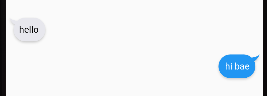
//chat_bubble.dart

@override
  Widget build(BuildContext context) {
    return Row(
      mainAxisAlignment: isMe ? MainAxisAlignment.end : MainAxisAlignment.start,
      children: [
        if(isMe)
          Padding(
            padding: const EdgeInsets.fromLTRB(0, 0, 5, 0), //왼쪽에서 조금 떨어지게 right 값만
            child: ChatBubble(
              clipper: ChatBubbleClipper8(type: BubbleType.sendBubble),
              alignment: Alignment.topRight,
              margin: EdgeInsets.only(top: 20),
              backGroundColor: Colors.blue,
              child: Container(
                constraints: BoxConstraints(
                  maxWidth: MediaQuery.of(context).size.width * 0.7,
                ),
                child: Text(
                  message,
                  style: TextStyle(color: Colors.white),
                ),
              ),
            ),
          ),
        if(!isMe)
          Padding(
            padding: const EdgeInsets.fromLTRB(5, 0, 0, 0),
            child: ChatBubble(
              clipper: ChatBubbleClipper8(type: BubbleType.receiverBubble),
              backGroundColor: Color(0xffE7E7ED),
              margin: EdgeInsets.only(top: 20),
              child: Container(
                constraints: BoxConstraints(
                  maxWidth: MediaQuery.of(context).size.width * 0.7,
                ),
                child: Text(
                  message,
                  style: TextStyle(color: Colors.black),
                ),
              ),
            ),
          ),
      ]
);> 원하는 버블 형태 복사해서 붙여넣기
채팅에서 메세지 바로 위에 유저 이름 표시
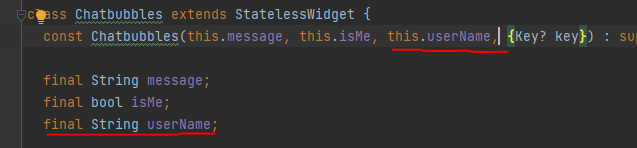
> 유저 이름 변수 만들고 생성자에도 추가
//new_message.dart

void _sendMessage() async{ //await 때문에 aysnc 방식
    FocusScope.of(context).unfocus();
    final user = FirebaseAuth.instance.currentUser;
    //유저네임 가져오기
    final userData = await FirebaseFirestore.instance.collection('user').doc(user!.uid).get();
    FirebaseFirestore.instance.collection('chat').add({
      'text' : _userEnterMessage,
      'time' : Timestamp.now(),
      'userID' : user!.uid,
'userName' : userData.data()!['userName'] //이름 저장>유저이름 가져올 변수 생성
//message.dart

* 오류 Bad state: field does not exist within the DocumentSnapshotPlatform

강의를 따라했더니 계속 이러한 에러가 뜬다.
처음엔 내가 잘못 쳤다 코드를 체크했지만 달라지는게 없어서 찾아보니 같은 에러가 있었다.

이 댓글로 오류는 해결
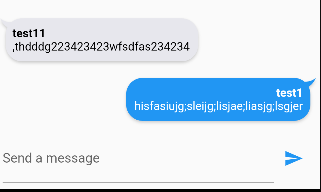
이후에 기존 코드로 바꿔도 에러가 안 뜬다.
chatDocs[index]['userName'],> 이 경우엔 회원가입시 user 컬렉션에 제대로 저장이 되지 않아서 생기는 에러 갔다.
기존의 회원들을 계정삭제하고 user 컬렉션과 나머지 기타 관련 데이터들을 삭제하고 새 계정을 만들어 user 컬렉션에 제대로 추가가 된다면 다 해결!
// chat_bubble.dart
import 'package:flutter/material.dart';
import 'package:flutter_chat_bubble/bubble_type.dart';
import 'package:flutter_chat_bubble/chat_bubble.dart';
import 'package:flutter_chat_bubble/clippers/chat_bubble_clipper_8.dart';

class Chatbubbles extends StatelessWidget {
  const Chatbubbles(this.message, this.isMe, this.userName, {Key? key}) : super(key: key);

  final String message;
  final String userName;
  final bool isMe;

  @override
  Widget build(BuildContext context) {
    return Row(
      mainAxisAlignment: isMe ? MainAxisAlignment.end : MainAxisAlignment.start,
      children: [
        if(isMe)
          Padding(
            padding: const EdgeInsets.fromLTRB(0, 0, 5, 0), //왼쪽에서 조금 떨어지게 right 값만
            child: ChatBubble(
              clipper: ChatBubbleClipper8(type: BubbleType.sendBubble),
              alignment: Alignment.topRight,
              margin: EdgeInsets.only(top: 20),
              backGroundColor: Colors.blue,
              child: Container(
                constraints: BoxConstraints(
                  maxWidth: MediaQuery.of(context).size.width * 0.7,
                ),
                child: Column(
                  crossAxisAlignment: isMe? CrossAxisAlignment.end : CrossAxisAlignment.start,
                  children: [
                    Text(
                      userName,
                      style: TextStyle(
                        fontWeight: FontWeight.bold,
                        color: Colors.white,
                      ),
                    ),
                    Text(
                      message,
                      style: TextStyle(color: Colors.white),
                    ),
                  ],
                ),
              ),
            ),
          ),
        if(!isMe)
          Padding(
            padding: const EdgeInsets.fromLTRB(5, 0, 0, 0),
            child: ChatBubble(
              clipper: ChatBubbleClipper8(type: BubbleType.receiverBubble),
              backGroundColor: Color(0xffE7E7ED),
              margin: EdgeInsets.only(top: 20),
              child: Container(
                constraints: BoxConstraints(
                  maxWidth: MediaQuery.of(context).size.width * 0.7,
                ),
                child: Column(
                  crossAxisAlignment: isMe? CrossAxisAlignment.end : CrossAxisAlignment.start,
                  children: [
                    Text(
                      userName,
                      style: TextStyle(
                        fontWeight: FontWeight.bold,
                        color: Colors.black
                      ),
                    ),
                    Text(
                      message,
                      style: TextStyle(color: Colors.black),
                    ),
                  ],
                ),
              ),
            ),
          ),
        ]
    );
  }
}
// new_message.dart
import 'package:flutter/material.dart';
import 'package:cloud_firestore/cloud_firestore.dart';
import 'package:firebase_auth/firebase_auth.dart';

class NewMessage extends StatefulWidget {
  const NewMessage({Key? key}) : super(key: key);

  @override
  _NewMessageState createState() => _NewMessageState();
}

class _NewMessageState extends State<NewMessage> {
  final _controller = TextEditingController();
  var _userEnterMessage = '';

  void _sendMessage() async{
    FocusScope.of(context).unfocus();
    final user = FirebaseAuth.instance.currentUser;
    final userData = await FirebaseFirestore.instance.collection('user').doc(user!.uid).get();
    FirebaseFirestore.instance.collection('chat').add({
      'text' : _userEnterMessage,
      'time' : Timestamp.now(),
      'userID' : user!.uid,
      'userName' : userData.data()!['userName']
    });
    _controller.clear();
  }

  @override
  Widget build(BuildContext context) {
    return Container(
      margin: EdgeInsets.only(top: 8),
      padding: EdgeInsets.all(8),
      child: Row(
        children: [
          Expanded(child: TextField(
            maxLines: null, //자동줄바꿈
            controller: _controller,
            decoration: InputDecoration(labelText: 'Send a message'
          ),
            onChanged: (value){
              setState(() {
                _userEnterMessage = value;
              });
            },
          ),
          ),
          IconButton(
              onPressed: _userEnterMessage.trim().isEmpty ? null : _sendMessage,
              icon: Icon(Icons.send),
          color: Colors.blue,)
        ],
      ),
    );
  }
}
// message.dart
return ListView.builder(
  reverse: true,
    itemCount: chatDocs.length,
    itemBuilder: (context, index){
      return Chatbubbles(
          chatDocs[index]['text'],
          chatDocs[index]['userID'].toString() == user!.uid,
          chatDocs[index]['userName'],
      );
  },
);
이미지 등록을 위한 커스텀 다이어로그 팝업창
- 사인업 텍스트필드 옆에 아이콘 추가
void showAlert(BuildContext context){
    showDialog(context: context,
        builder: (context){
        return Dialog(
          backgroundColor: Colors.white,
          child: Container(
            padding: EdgeInsets.only(top: 10),
            width: 150,
            height: 300,
            child: Column(
              children: [
                CircleAvatar(
                  radius: 40,
                  backgroundColor: Colors.blue,
                ),
                SizedBox(
                    height: 10
                ),
                OutlinedButton.icon(
                  onPressed: (){},
                  icon: Icon(Icons.image),
                  label: Text('Add icon'),
                ),
                SizedBox(height: 80),
                TextButton.icon(
                  onPressed: (){
                    Navigator.pop(context);
                  },
                  icon: Icon(Icons.close),
                  label: Text('close'),
                )
              ],
            ),
          ),
        );
    }
    );
  }


//텍스트폼필드
	AnimatedPositioned(
    .
    .
    .
        SizedBox(
          width: 15,
        ),
        GestureDetector(
            onTap: (){
            	showAlert(context);
            },
            child: Icon(
              Icons.image,
              color: isSignupScreen ? Colors.cyan : Colors.grey[300],
            ),
),> showAlert 함수가 복잡함으로 리팩토링
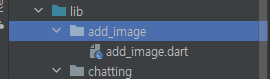
//add_image/add_image.dart

import 'package:flutter/material.dart';

class AddImage extends StatefulWidget {
  const AddImage({Key? key}) : super(key: key);

  @override
  State<AddImage> createState() => _AddImageState();
}

class _AddImageState extends State<AddImage> {
  @override
  Widget build(BuildContext context) {
    return Container(
      padding: EdgeInsets.only(top: 10),
      width: 150,
      height: 300,
      child: Column(
        children: [
          CircleAvatar(
            radius: 40,
            backgroundColor: Colors.blue,
          ),
          SizedBox(
              height: 10
          ),
          OutlinedButton.icon(
            onPressed: (){},
            icon: Icon(Icons.image),
            label: Text('Add icon'),
          ),
          SizedBox(height: 80),
          TextButton.icon(
            onPressed: (){
              Navigator.pop(context);
            },
            icon: Icon(Icons.close),
            label: Text('close'),
          )
        ],
      ),
    );
  }
}//main_screen.dart
void showAlert(BuildContext context){
showDialog(context: context,
builder: (context){
return Dialog(
backgroundColor: Colors.white,
child: AddImage()
);
}
);
}
조금 매운맛 30 채팅메세지 챗버블에 유저 이미지 출력
디바이스에 사진 추가 혹은 사진 찍어서 업로드할 수 있는 패키지
image_picker | Flutter Package
Flutter plugin for selecting images from the Android and iOS image library, and taking new pictures with the camera.
pub.dev
// add_image.dart
import 'dart:math';

import 'package:flutter/material.dart';
import 'package:image_picker/image_picker.dart';
import 'dart:io';

class AddImage extends StatefulWidget {
  const AddImage({Key? key}) : super(key: key);

  @override
  State<AddImage> createState() => _AddImageState();
}

class _AddImageState extends State<AddImage> {

  File? pickedImage;

  void _pcikImage() async{
    final imagePicker = ImagePicker();
    final pickedImageFile = await imagePicker.pickImage(
        source: ImageSource.camera,
    imageQuality: 50,
    maxHeight: 150);
    setState(() {
      if(pickedImageFile != null)
        pickedImage = File(pickedImageFile.path);
    });
  }

  @override
  Widget build(BuildContext context) {
    return Container(
      padding: EdgeInsets.only(top: 10),
      width: 150,
      height: 300,
      child: Column(
        children: [
          CircleAvatar(
            radius: 40,
            backgroundColor: Colors.blue,
            backgroundImage: pickedImage !=null ? FileImage(pickedImage!) : null,
          ),
          SizedBox(
              height: 10
          ),
          OutlinedButton.icon(
            onPressed: (){
              _pcikImage();
            },
            icon: Icon(Icons.image),
            label: Text('Add icon'),
          ),
          SizedBox(height: 80),
          TextButton.icon(
            onPressed: (){
              Navigator.pop(context);
            },
            icon: Icon(Icons.close),
            label: Text('close'),
          )
        ],
      ),
    );
  }
}
사진 데이터베이스에 저장
firebase_storage | Flutter Package
Flutter plugin for Firebase Cloud Storage, a powerful, simple, and cost-effective object storage service for Android and iOS.
pub.dev
//add_image.dart

const AddImage(this.addImageFunc, {Key? key}) : super(key: key);

  final Function(File pickedImage) addImageFunc; //추가


// 이미지등록
  void _pcikImage() async{
    final imagePicker = ImagePicker();
    final pickedImageFile = await imagePicker.pickImage(
        source: ImageSource.camera,
    imageQuality: 50,
    maxHeight: 150);
    setState(() {
      if(pickedImageFile != null)
        pickedImage = File(pickedImageFile.path);
    });
    widget.addImageFunc(pickedImage!); //추가
}> dart는 function도 다른 메서드에 인자값으로 전달 가능
//main_screen.dart

class _LoginSignupScreenState extends State<LoginSignupScreen> {

    File? userPickedImage;

    void pickedImage(File image){
    	userPickedImage = image;
  	}

    void showAlert(BuildContext context){
        void pickedImage(File image){
          userPickedImage = image;
}메서드 뒤에 () 붙이지 않는 이유 : 메서드의 위치를 가리키고 있는 포인터만 전달해주기 위함
> pickedImage 이름에는 메서드 위치가 저장되어 있음
이미지 미등록시 스낵바 안내
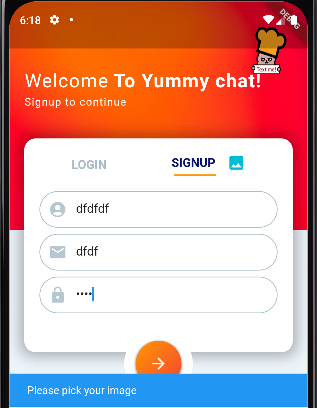
if(userPickedImage == null){
  setState(() {
    showSpinner = false;
  });

  ScaffoldMessenger.of(context).showSnackBar(SnackBar(
    content:
    Text('Please pick your image'),
    backgroundColor: Colors.blue,
  ));

  return;
}
사진추가해서 회원가입하면 잘 되지만 다음과 같은 에러가 뜸

> 회원가입 try-catch문의 catch 부분 문제
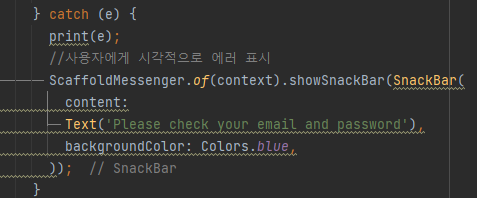
> async 방식으로 사용자 등록 과정이 진행될 때 위젯트리가 변하게 되는데 scaffold는 바뀌기전 위젯트리의 context를 사용하는 중이고 setState는 객체는 사라졌는데 호출되기 때문
> 마운트 될때만 되도록 추가
if (mounted) {
이미지 업로드
- 파이어베이스 스토리지 생성
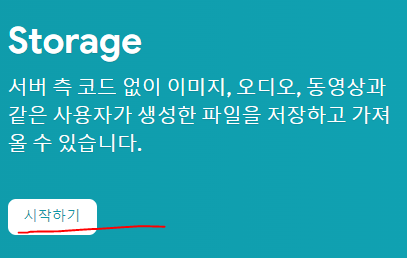

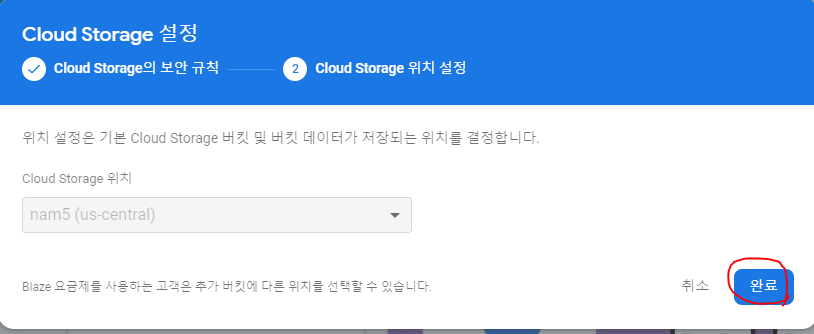

rules_version = '2';
service firebase.storage {
  match /b/{bucket}/o {
    match /{allPaths=**} {
      allow read, create: if
          request.time < timestamp.date(2023, 3, 29);
    }
  }
}>룰도 변경
//main_screen.dart

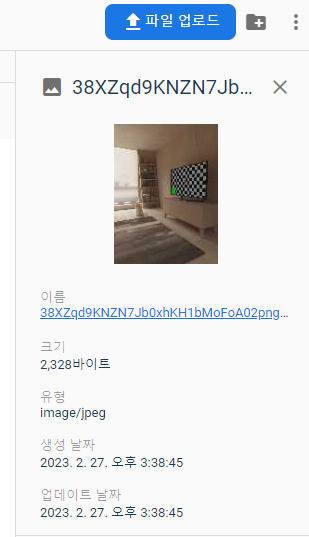
final refImage = FirebaseStorage.instance.ref()
    .child('picked_image')
    .child(newUser.user!.uid +'png');

await refImage.putFile(userPickedImage!);이러고 회원가입하면 아래처럼 스토리지에 잘 뜸
- 대화창에 이미지 띄우기
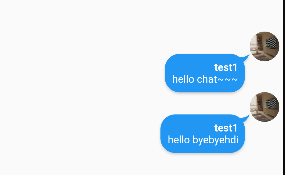
// chat_bubble.dart

Positioned(
            top: 0,
            right: isMe ? 5 : null,
            left: isMe ? null : 5,
            child: CircleAvatar(
              backgroundImage: NetworkImage(userImage),
            ))
전체코드
// main_screen.dart
import 'package:flutter/material.dart';
import 'package:yami_chat/add_image/add_image.dart';
import 'package:yami_chat/config/palette.dart';
import 'package:firebase_auth/firebase_auth.dart';
import 'package:yami_chat/screens/chat_screen.dart';
import 'package:modal_progress_hud_nsn/modal_progress_hud_nsn.dart';
import 'package:cloud_firestore/cloud_firestore.dart';
import 'dart:io';
import 'package:firebase_storage/firebase_storage.dart';
class LoginSignupScreen extends StatefulWidget {
const LoginSignupScreen({Key? key}) : super(key: key);
@override
State<LoginSignupScreen> createState() => _LoginSignupScreenState();
}
class _LoginSignupScreenState extends State<LoginSignupScreen> {
final _authentication = FirebaseAuth.instance;
bool isSignupScreen = true;// 로그인가입화면 state 관리를 위해서
bool showSpinner = false;
final _formKey = GlobalKey<FormState>();
String userName = '';
String userEmail = '';
String userPassword = '';
File? userPickedImage;
void pickedImage(File image){
userPickedImage = image;
}
void _tryValidation(){
final isValid = _formKey.currentState!.validate();
if(isValid){
_formKey.currentState!.save();
}
}
void showAlert(BuildContext context){
showDialog(context: context,
builder: (context){
return Dialog(
backgroundColor: Colors.white,
child: AddImage(pickedImage),
);
}
);
}
@override
Widget build(BuildContext context) {
return Scaffold(
backgroundColor: Palette.backgroundColor,
body: ModalProgressHUD(
inAsyncCall: showSpinner, //처음엔 false이다 사인업, 사인인했을때 true
child: GestureDetector(
onTap: (){
FocusScope.of(context).unfocus();
},
child: Stack(
children: [
//배경
Positioned(
top: 0,
left: 0, // 스크린 상단 시작점 맞추기위해서 좌우 0
right: 0,
child: Container(
height: 300,
decoration: BoxDecoration(
image: DecorationImage(
image: AssetImage('image/red.jpg'),
fit: BoxFit.fill //스크린 상단 끝까지 채우기
),
),
child: Container(
padding: EdgeInsets.only(top: 90, left: 20),
child: Column(
crossAxisAlignment: CrossAxisAlignment.start,
children: [
RichText(text: TextSpan( //문단등 구성할 수 있게 해주는 위젯
text: 'Welcome',
style: TextStyle(
letterSpacing: 1.0,
fontSize: 25,
color: Colors.white,
),
children: [
TextSpan( //문단등 구성할 수 있게 해주는 위젯
text: isSignupScreen ? ' To Yummy chat!' : ' back',
style: TextStyle(
letterSpacing: 1.0,
fontSize: 25,
color: Colors.white,
fontWeight: FontWeight.bold,
),
),
],
),
),
SizedBox(
height: 5.0,
),
Text(
isSignupScreen ? 'Signup to continue' : 'Signin to continue',
style: TextStyle(
letterSpacing: 1.0,
color: Colors.white,
),
),
],
),
),
),),
//텍스트폼필드
AnimatedPositioned(//
duration: Duration(milliseconds: 500),
curve: Curves.easeIn,
top: 180.0,
child:
Container(
padding: EdgeInsets.all(20.0),
height: isSignupScreen ? 280.0 : 200.0,
width: MediaQuery.of(context).size.width-40, // MediaQuery 이용해서 디바이스의 크기에 맞춰 -40
margin: EdgeInsets.symmetric(horizontal: 20.0),
decoration: BoxDecoration(
color: Colors.white,
borderRadius: BorderRadius.circular(15.0),
boxShadow: [
BoxShadow(
color: Colors.black.withOpacity(0.3),
blurRadius: 15,
spreadRadius: 5,
)
]
),
child: SingleChildScrollView(
padding: EdgeInsets.only(bottom: 20),
child: Column(
children: [
Row(
mainAxisAlignment: MainAxisAlignment.spaceAround,
children: [
GestureDetector(
onTap: () {
setState(() {
isSignupScreen = false;
});
},
child: Column(
children: [
Text(
'LOGIN',
style: TextStyle(
fontSize: 16,
color: !isSignupScreen
? Palette.activeColor
: Palette.textColor1,
fontWeight: FontWeight.bold),
),
if (!isSignupScreen)
Container(
height: 2,
width: 55,
color: Colors.orange,
)
],
),
),
GestureDetector(
onTap: () {
setState(() {
isSignupScreen = true;
});
},
child: Column(
children: [
Row(
children: [
Text(
'SIGNUP',
style: TextStyle(
fontSize: 16,
color: isSignupScreen
? Palette.activeColor
: Palette.textColor1,
fontWeight: FontWeight.bold),
),
SizedBox(
width: 15,
),
if(isSignupScreen)
GestureDetector(
onTap: (){
showAlert(context);
},
child: Icon(
Icons.image,
color: isSignupScreen ? Colors.cyan : Colors.grey[300],
),
),
],
),
if (isSignupScreen)
Container(
margin: EdgeInsets.fromLTRB(0, 3, 35, 0),
height: 2,
width: 55,
color: Colors.orange,
)
],
),
)
],
),
if(isSignupScreen)
Container(
margin: EdgeInsets.only(top: 20),
child: Form(
key: _formKey,
child: Column(
children: [
TextFormField(
key: ValueKey(1),
validator: (value){
if(value!.isEmpty || value.length < 4) {
return 'Please enter at least 4 characters';
} return null;
},
onSaved: (value){
userName = value!;
},
onChanged: (value){
userName = value;
},
decoration: InputDecoration(
prefixIcon: Icon(Icons.account_circle,
color: Palette.iconColor,
),
enabledBorder: OutlineInputBorder(
borderSide: BorderSide(
color: Palette.textColor1
),
borderRadius: BorderRadius.all(Radius.circular(35.0),
),
),
focusedBorder: OutlineInputBorder( // textfield 선택 했을 때 보더라인 보여주는 기능
borderSide: BorderSide(
color: Palette.textColor1
),
borderRadius: BorderRadius.all(Radius.circular(35.0),
),
),
hintText: 'User name',
hintStyle: TextStyle(
fontSize: 14,
color: Palette.textColor1
),
contentPadding: EdgeInsets.all(10)
),
),
SizedBox(
height: 8,
),
TextFormField(
keyboardType: TextInputType.emailAddress,
key: ValueKey(2),
validator: (value){
if(value!.isEmpty || value.contains('@')) {
return 'Please enter a valid email address';
} return null;
},
onSaved: (value){
userEmail = value!;
},
onChanged: (value){
userEmail = value;
},
decoration: InputDecoration(
prefixIcon: Icon(Icons.email_sharp,
color: Palette.iconColor,
),
enabledBorder: OutlineInputBorder(
borderSide: BorderSide(
color: Palette.textColor1
),
borderRadius: BorderRadius.all(Radius.circular(35.0),
),
),
focusedBorder: OutlineInputBorder( // textfield 선택 했을 때 보더라인 보여주는 기능
borderSide: BorderSide(
color: Palette.textColor1
),
borderRadius: BorderRadius.all(Radius.circular(35.0),
),
),
hintText: 'email',
hintStyle: TextStyle(
fontSize: 14,
color: Palette.textColor1
),
contentPadding: EdgeInsets.all(10)
),
),
SizedBox(
height: 8,
),
TextFormField(
obscureText: true,
key: ValueKey(3),
validator: (value){
if(value!.isEmpty || value.length < 6) {
return 'Password must be at least 7 characters long';
} return null;
},
onSaved: (value){
userPassword = value!;
},
onChanged: (value){
userPassword = value;
},
decoration: InputDecoration(
prefixIcon: Icon(Icons.lock,
color: Palette.iconColor,
),
enabledBorder: OutlineInputBorder(
borderSide: BorderSide(
color: Palette.textColor1
),
borderRadius: BorderRadius.all(Radius.circular(35.0),
),
),
focusedBorder: OutlineInputBorder( // textfield 선택 했을 때 보더라인 보여주는 기능
borderSide: BorderSide(
color: Palette.textColor1
),
borderRadius: BorderRadius.all(Radius.circular(35.0),
),
),
hintText: 'password',
hintStyle: TextStyle(
fontSize: 14,
color: Palette.textColor1
),
contentPadding: EdgeInsets.all(10)
),
)
],
),
),
),
if(!isSignupScreen)
Container(
margin: EdgeInsets.only(top: 20),
child: Form(
key: _formKey,
child: Column(
children: [
TextFormField(
key: ValueKey(4),
validator: (value){
if(value!.isEmpty || value.contains('@')) {
return 'Please enter a valid email address';
} return null;
},
onSaved: (value){
userEmail = value!;
},
onChanged: (value){
userEmail = value;
},
decoration: InputDecoration(
prefixIcon: Icon(Icons.account_circle,
color: Palette.iconColor,
),
enabledBorder: OutlineInputBorder(
borderSide: BorderSide(
color: Palette.textColor1
),
borderRadius: BorderRadius.all(Radius.circular(35.0),
),
),
focusedBorder: OutlineInputBorder( // textfield 선택 했을 때 보더라인 보여주는 기능
borderSide: BorderSide(
color: Palette.textColor1
),
borderRadius: BorderRadius.all(Radius.circular(35.0),
),
),
hintText: 'User name',
hintStyle: TextStyle(
fontSize: 14,
color: Palette.textColor1
),
contentPadding: EdgeInsets.all(10)
),
),
SizedBox(
height: 8.0,
),
TextFormField(
obscureText: true,
key: ValueKey(5),
validator: (value){
if(value!.isEmpty || value.length < 6) {
return 'Password must be at least 7 characters long';
} return null;
},
onSaved: (value){
userPassword = value!;
},
onChanged: (value){
userPassword = value;
},
decoration: InputDecoration(
prefixIcon: Icon(Icons.lock,
color: Palette.iconColor,
),
enabledBorder: OutlineInputBorder(
borderSide: BorderSide(
color: Palette.textColor1
),
borderRadius: BorderRadius.all(Radius.circular(35.0),
),
),
focusedBorder: OutlineInputBorder( // textfield 선택 했을 때 보더라인 보여주는 기능
borderSide: BorderSide(
color: Palette.textColor1
),
borderRadius: BorderRadius.all(Radius.circular(35.0),
),
),
hintText: 'Password',
hintStyle: TextStyle(
fontSize: 14,
color: Palette.textColor1
),
contentPadding: EdgeInsets.all(10)
),
),
],
),
),
)
],
),
),
),
),
//전송버튼
AnimatedPositioned(
duration: Duration(milliseconds: 150),
curve: Curves.easeIn,
top: isSignupScreen ? 430 : 350,
right:0,
left: 0,
child: Center(
child: Container(
padding: EdgeInsets.all(15),
height: 90,
width: 90,
decoration: BoxDecoration(
color: Colors.white,
borderRadius: BorderRadius.circular(50),
),
child: GestureDetector(
onTap: () async {
setState(() { //스피너 돌기
showSpinner = true;
});
if (isSignupScreen) { //회원가입
if(userPickedImage == null){
setState(() {
showSpinner = false;
});
ScaffoldMessenger.of(context).showSnackBar(SnackBar(
content:
Text('Please pick your image'),
backgroundColor: Colors.blue,
));
return;
}
_tryValidation();
try {
final newUser = await _authentication
.createUserWithEmailAndPassword(
email: userEmail,
password: userPassword);
final refImage = FirebaseStorage.instance.ref()
.child('picked_image')
.child(newUser.user!.uid +'png');
await refImage.putFile(userPickedImage!);
final url = await refImage.getDownloadURL();
await FirebaseFirestore.instance.collection('user').doc(
newUser.user!.uid).set({
'userName' : userName,
'email' : userEmail,
'picked_image' : url,
});
if (newUser.user != null) { // 회원 등록 성공
// Navigator.push(
// context,
// MaterialPageRoute(
// builder: (context) => ChatScreen()
// )
// );
setState(() { //회원등록이 완료되면 스피터 끝내기
showSpinner = false;
});
}
} catch (e) {
print(e);
//사용자에게 시각적으로 에러 표시
if (mounted) {
ScaffoldMessenger.of(context).showSnackBar(
SnackBar(
content:
Text(
'Please check your email and password'),
backgroundColor: Colors.blue,
));
setState(() {
showSpinner = false;
});
}
}
}
if (!isSignupScreen) { //로그인
try {
_tryValidation();
final newUser =
await _authentication.signInWithEmailAndPassword(
email: userEmail, password: userPassword);
if (newUser.user != null) {
Navigator.push(
context,
MaterialPageRoute(
builder: (context) => ChatScreen()
),
);
setState(() {
showSpinner = false;
});
}
} catch (e) {
print(e);
}
}
},
child: Container(
decoration: BoxDecoration(
gradient: LinearGradient(
colors: [
Colors.orange,
Colors.red
],
begin: Alignment.topLeft,
end: Alignment.bottomRight
),
borderRadius: BorderRadius.circular(30),
boxShadow: [
BoxShadow(
color: Colors.black.withOpacity(0.3),
spreadRadius: 1,
blurRadius: 1,
offset: Offset(0,1), //버튼으로부터 수직수평 거리
),
],
),
child: Icon(
Icons.arrow_forward,
color: Colors.white,
),
),
),
),
)),
//signUp과 구글버튼
AnimatedPositioned(
duration: Duration(milliseconds: 200),
top: isSignupScreen ? MediaQuery.of(context).size.height-125 : MediaQuery.of(context).size.height-185,
right: 0,
left: 0,
child: Column(
children: [
Text(isSignupScreen ? 'or Signup with' : 'or Sign with'),
SizedBox(
height: 10,
),
TextButton.icon(
style: TextButton.styleFrom(
primary: Colors.white,
minimumSize: Size(155, 40),
shape: RoundedRectangleBorder(
borderRadius: BorderRadius.circular(20)
),
backgroundColor: Palette.googleColor
),
icon: Icon(Icons.add),
onPressed: (){},
label: Text('Google'),
)
],
)
,),
],
),
),
),
);
}
}
// chatting/chat/chat_bubble
import 'package:flutter/material.dart';
import 'package:flutter_chat_bubble/bubble_type.dart';
import 'package:flutter_chat_bubble/chat_bubble.dart';
import 'package:flutter_chat_bubble/clippers/chat_bubble_clipper_8.dart';

class Chatbubbles extends StatelessWidget {
  const Chatbubbles(this.message, this.isMe, this.userName, this.userImage, {Key? key}) : super(key: key);

  final String message;
  final String userName;
  final bool isMe;
  final String userImage;

  @override
  Widget build(BuildContext context) {
    return Stack(
      children: [
        Row(
        mainAxisAlignment: isMe ? MainAxisAlignment.end : MainAxisAlignment.start,
        children: [
          if(isMe)
            Padding(
              padding: const EdgeInsets.fromLTRB(0, 10, 45, 0), //왼쪽에서 조금 떨어지게 right 값만
              child: ChatBubble(
                clipper: ChatBubbleClipper8(type: BubbleType.sendBubble),
                alignment: Alignment.topRight,
                margin: EdgeInsets.only(top: 20),
                backGroundColor: Colors.blue,
                child: Container(
                  constraints: BoxConstraints(
                    maxWidth: MediaQuery.of(context).size.width * 0.7,
                  ),
                  child: Column(
                    crossAxisAlignment: isMe? CrossAxisAlignment.end : CrossAxisAlignment.start,
                    children: [
                      Text(
                        userName,
                        style: TextStyle(
                          fontWeight: FontWeight.bold,
                          color: Colors.white,
                        ),
                      ),
                      Text(
                        message,
                        style: TextStyle(color: Colors.white),
                      ),
                    ],
                  ),
                ),
              ),
            ),
          if(!isMe)
            Padding(
              padding: const EdgeInsets.fromLTRB(45, 10, 0, 0),
              child: ChatBubble(
                clipper: ChatBubbleClipper8(type: BubbleType.receiverBubble),
                backGroundColor: Color(0xffE7E7ED),
                margin: EdgeInsets.only(top: 20),
                child: Container(
                  constraints: BoxConstraints(
                    maxWidth: MediaQuery.of(context).size.width * 0.7,
                  ),
                  child: Column(
                    crossAxisAlignment: isMe? CrossAxisAlignment.end : CrossAxisAlignment.start,
                    children: [
                      Text(
                        userName,
                        style: TextStyle(
                          fontWeight: FontWeight.bold,
                          color: Colors.black
                        ),
                      ),
                      Text(
                        message,
                        style: TextStyle(color: Colors.black),
                      ),
                    ],
                  ),
                ),
              ),
            ),
          ]
      ),

        Positioned(
            top: 0,
            right: isMe ? 5 : null,
            left: isMe ? null : 5,
            child: CircleAvatar(
              backgroundImage: NetworkImage(userImage),
            ))
      ]
    );
  }
}
// chatting/chat/message.dart
import 'package:flutter/material.dart';
import 'package:cloud_firestore/cloud_firestore.dart';
import 'package:yami_chat/chatting/chat/chat_bubble.dart';
import 'package:firebase_auth/firebase_auth.dart';

class Messages extends StatelessWidget {
  const Messages({Key? key}) : super(key: key);

  @override
  Widget build(BuildContext context) {
    final user = FirebaseAuth.instance.currentUser;
    return StreamBuilder(
        stream: FirebaseFirestore.instance
            .collection('chat')
            .orderBy('time', descending: true)
            .snapshots(),
    builder: (context,AsyncSnapshot<QuerySnapshot<Map<String, dynamic>>> snapshot){
            if(snapshot.connectionState == ConnectionState.waiting){
            return Center(
              child: CircularProgressIndicator(),
            );
          }
          final chatDocs = snapshot.data!.docs;

          return ListView.builder(
            reverse: true,
              itemCount: chatDocs.length,
              itemBuilder: (context, index){
                return Chatbubbles(
                    chatDocs[index]['text'],
                    chatDocs[index]['userID'].toString() == user!.uid,
                    chatDocs[index]['userName'],
                    chatDocs[index]['userImage']
                );
            },
          );
          },
    );
  }
}
// chatting/chat/new_message.dart
import 'package:flutter/material.dart';
import 'package:cloud_firestore/cloud_firestore.dart';
import 'package:firebase_auth/firebase_auth.dart';

class NewMessage extends StatefulWidget {
  const NewMessage({Key? key}) : super(key: key);

  @override
  _NewMessageState createState() => _NewMessageState();
}

class _NewMessageState extends State<NewMessage> {
  final _controller = TextEditingController();
  var _userEnterMessage = '';

  void _sendMessage() async{
    FocusScope.of(context).unfocus();
    final user = FirebaseAuth.instance.currentUser;
    final userData = await FirebaseFirestore.instance.collection('user').doc(user!.uid).get();
    FirebaseFirestore.instance.collection('chat').add({
      'text' : _userEnterMessage,
      'time' : Timestamp.now(),
      'userID' : user!.uid,
      'userName' : userData.data()!['userName'],
      'userImage' : userData['picked_image']
    });
    _controller.clear();
  }

  @override
  Widget build(BuildContext context) {
    return Container(
      margin: EdgeInsets.only(top: 8),
      padding: EdgeInsets.all(8),
      child: Row(
        children: [
          Expanded(child: TextField(
            maxLines: null, //자동줄바꿈
            controller: _controller,
            decoration: InputDecoration(labelText: 'Send a message'
          ),
            onChanged: (value){
              setState(() {
                _userEnterMessage = value;
              });
            },
          ),
          ),
          IconButton(
              onPressed: _userEnterMessage.trim().isEmpty ? null : _sendMessage,
              icon: Icon(Icons.send),
          color: Colors.blue,)
        ],
      ),
    );
  }
}
// add_image/add_image.dart
import 'dart:math';

import 'package:flutter/material.dart';
import 'package:image_picker/image_picker.dart';
import 'dart:io';

class AddImage extends StatefulWidget {
  const AddImage(this.addImageFunc, {Key? key}) : super(key: key);

  final Function(File pickedImage) addImageFunc;

  @override
  State<AddImage> createState() => _AddImageState();
}

class _AddImageState extends State<AddImage> {

  File? pickedImage;

  // 이미지등록
  void _pcikImage() async{
    final imagePicker = ImagePicker();
    final pickedImageFile = await imagePicker.pickImage(
        source: ImageSource.camera,
    imageQuality: 50,
    maxHeight: 150);
    setState(() {
      if(pickedImageFile != null)
        pickedImage = File(pickedImageFile.path);
    });
    widget.addImageFunc(pickedImage!);
  }

  @override
  Widget build(BuildContext context) {
    return Container(
      padding: EdgeInsets.only(top: 10),
      width: 150,
      height: 300,
      child: Column(
        children: [
          CircleAvatar(
            radius: 40,
            backgroundColor: Colors.blue,
            backgroundImage: pickedImage !=null ? FileImage(pickedImage!) : null,
          ),
          SizedBox(
              height: 10
          ),
          OutlinedButton.icon(
            onPressed: (){
              _pcikImage();
            },
            icon: Icon(Icons.image),
            label: Text('Add icon'),
          ),
          SizedBox(height: 80),
          TextButton.icon(
            onPressed: (){
              Navigator.pop(context);
            },
            icon: Icon(Icons.close),
            label: Text('close'),
          )
        ],
      ),
    );
  }
}
'공부 > Flutter' 카테고리의 다른 글
| Flutter 스터디 30 Cloud Firestore 기본 구조 및 기본 CRUD (0) | 2023.03.02 |
|---|---|
| Flutter 스터디 29 Provider - ChangeNotifierProvider와 MultiProvider (0) | 2023.03.02 |
| Flutter 스터디 27 Stream, Firebase Rule 및 로그아웃 기능 수정 (0) | 2023.02.23 |
| Flutter 스터디 26 Firebase 연동 및 SignUp/SignIn 기능 구현 (0) | 2023.02.23 |
| Flutter 스터디 25 채팅 앱 UI 디자인, TextFormField validation 구현 (0) | 2023.02.20 |